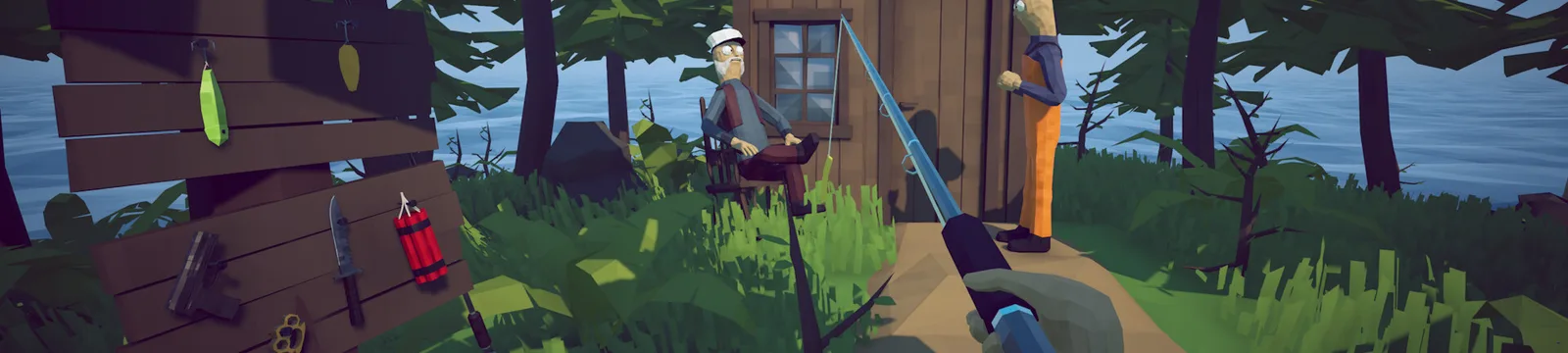

How to Fish Steam Deck Troubleshooting Guide
Use this How to Fish Steam Deck troubleshooting guide for controls, performance, small text, multiplayer, and launch checks.
FAQ
Does How to Fish run on Steam Deck?
What FPS cap should Steam Deck use for How to Fish?
Are Steam Deck multiplayer problems Deck-specific?
Is How to Fish broken on Steam Deck?
This How to Fish Steam Deck troubleshooting guide starts with an important distinction: as of Patch 1.0.10, the available evidence does not support a broad “does not work on Steam Deck” claim. SteamDeckHQ’s hands-on report says the game ran well and reached about 60 FPS on high settings in its early test. The official Steam page, however, lists Windows 10 or newer rather than native Linux support, so Deck play depends on Steam’s compatibility layer.
Community discussion listings include questions about Deck viability and a report of trouble joining multiplayer from Deck. Those do not prove the hardware is the cause, because desktop players report similar connection failures.
Which Steam Deck troubleshooting checks should you try first?
Follow this How to Fish Steam Deck troubleshooting sequence before assuming the device is incompatible:
- Update SteamOS, restart the Deck, and confirm Patch 1.0.10. Avoid changing Proton and graphics settings at the same time.
- Use Steam’s default compatibility selection first. If you previously forced a Proton version, clear that override and retest.
- Verify installed files. This is the safest repair for an incomplete update.
- Set a frame-rate cap. Start at 60; try 30 for steadier pacing or longer battery life. Patch 1.0.5 made 30 the lowest supported locked value.
- Use the default controller layout. If input is wrong, test Steam Input once enabled and once disabled, restarting between tests.
- Increase interface scale with Steam’s Magnifier if text is difficult to read. Small text is a usability limitation, not proof of a crash or save bug.
- For multiplayer, create a fresh private lobby and test another host. Use the desktop troubleshooting sequence before forcing a different Proton build.
If a Proton change makes the game worse, return to the previous working choice. Community compatibility layers evolve independently of game patches, so a one-off version recommendation can age quickly.
What performance should you expect?
The independent test reported approximately 60 FPS on high settings with power use below roughly 16 watts at the time of testing. That is one device and one early build, not a promise for every scene or later patch. Busy multiplayer saves and many ground items can behave differently; Patch 1.0.10 changed how up to 64 loose items are saved and loaded.
Use the low-FPS guide if frame pacing is unstable. If the built-in controls fail, follow the controller and input checks. For failed joins, use the multiplayer connection guide. Protect progress with the save guide before experimenting with compatibility versions.
What is not confirmed?
No reviewed official patch note identifies a Deck-only crash, audio failure, or save corruption issue. The official store requirements do not by themselves mean the game cannot run on Deck, and a third-party positive test does not guarantee official support. Report the Deck model, SteamOS version, Proton selection, frame cap, solo or multiplayer state, and exact failure.
Sources
- Official How to Fish Steam store page — Windows system requirements and current store information. Accessed 2026-09-01.
- Official Steam announcements and patch notes — current Patch 1.0.10 and FPS, multiplayer, controller changes. Accessed 2026-09-01.
- Steam Community discussions index — Deck viability and Deck multiplayer reports visible in current listings. Accessed 2026-09-01.
- SteamDeckHQ hands-on report — independent Deck performance test. Accessed 2026-09-01.
Related Articles
guides
How to Beat the Albatross Boss — How to Fish Guide
This How to Fish Albatross boss guide explains the Tuna trigger, ranged rain attack, cover timing, safe damage windows, and weapon choices.
guides
How to Beat the Blue Shark Boss — How to Fish Guide
This How to Fish Blue Shark boss guide explains the Desert lure, spinning charge, safe movement, weapon choice, and grill quest hand-in.
guides
How to Beat the Bowhead Whale Boss — How to Fish Guide
This How to Fish Bowhead Whale boss guide covers the final quest, body slam, falling hazards, upgraded Assault Rifle, healing, and Handyman.
Was this helpful?
Thanks for the feedback!