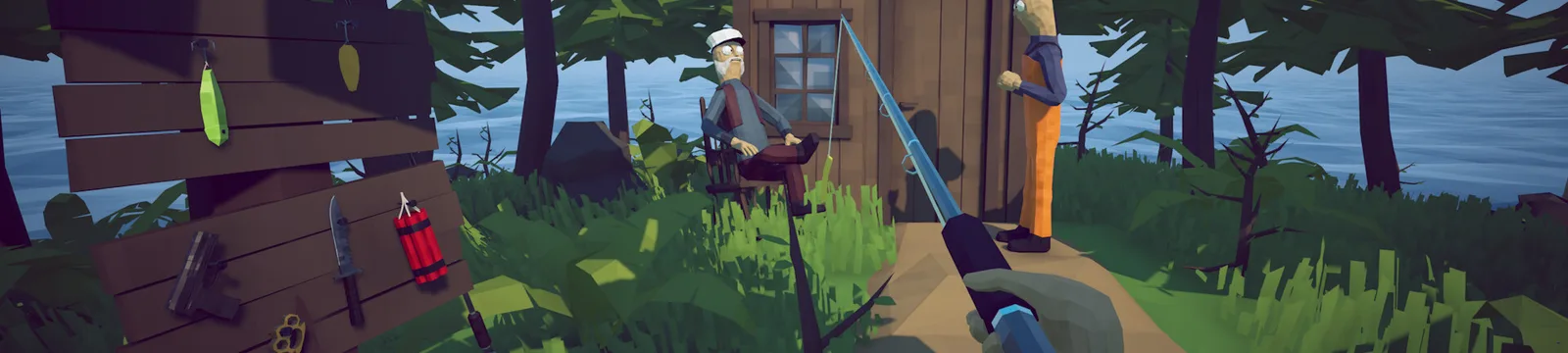

How to Fish Save File and Progress Not Saving Fix
Use this How to Fish save file progress fix for safe backups, patch-aware steps, and confirmed save behavior.
FAQ
Does How to Fish autosave?
Does How to Fish save after a crash?
Should I delete a broken How to Fish save?
Why is your How to Fish save file not keeping progress?
If you need a How to Fish save file progress fix, first confirm whether the latest save completed. As of Patch 1.0.10, the game is supposed to autosave once per minute and save when you choose Save, Main Menu, or Quit. The official Patch 1.0.6 notes also state that a crash does not trigger a save. That makes an unexpected shutdown the clearest confirmed reason for recent progress to disappear.
Player reports show several different symptoms: a new run loading instead of the expected save, a save failing after multiplayer, and progress disappearing after a crash. These reports do not prove one universal cause. Earlier patches also fixed server names containing special characters that could break saves and added save validation, so older threads may describe bugs that are already addressed.
| Symptom | Evidence-backed status | What it means |
|---|---|---|
| Progress lost after a crash | Confirmed behavior | The crash does not perform a final save |
| Save looks older after normal exit | Still reported | Confirm the timestamp before changing files |
| Multiplayer session did not preserve progress | Player-reported | Host/client behavior is not fully documented |
| Corrupt-save crash | Patch 1.0.9 says “hopefully fixed” | The developer did not mark the fix as certain |
Which save file progress fixes should you try first?
Use this How to Fish save file progress fix in order, starting with the safest checks:
- Wait at least one full minute in a safe area. Avoid quitting while items are still loading or a connection is failing.
- Use Save, then Main Menu. Relaunch the game and confirm the expected slot before doing more troubleshooting.
- Check the save file’s modified time. If the timestamp did not change, stop playing on that slot so a useful backup is not overwritten.
- Back up the complete save folder. Copy it somewhere outside the game’s folder. Do this before renaming, moving, or editing anything.
- Restart Steam and verify the game files. This can repair installed game files, but it does not recreate missing progress.
- Test a new disposable slot. Play for two minutes, save through the menu, relaunch, and see whether that slot returns. This separates a single damaged save from a broader write problem.
Do not start by deleting save data or disabling cloud synchronization. Steam Cloud conflicts can show a local/cloud choice; read the timestamps carefully and keep a copy of both versions before choosing. No official source confirms that turning Cloud off is a general fix.
What if the save appears corrupt?
Patch 1.0.6 added validation intended to stop loading a wrong file, while Patch 1.0.9 says it “hopefully” fixed a crash involving corrupt save data. Because the developer used uncertain wording, a damaged slot should be treated as possible, not automatically repaired.
Move the suspected save to a clearly named backup folder and let the game create a fresh slot. If the fresh slot saves normally, keep the original untouched for a future patch or support request. Avoid copying individual fields from an old save unless you understand the format; the Developer Island guide demonstrates save editing only for a disposable file, not recovery.
If progress vanished during a connection failure, also follow the multiplayer connection fixes. For a crash during play, work through the crash-on-launch and desktop fixes before continuing the same save. The beginner walkthrough can help rebuild early progression if no recoverable copy remains.
Which fixes are not confirmed?
Community threads sometimes recommend deleting a local text file, reinstalling Windows components, or replacing save contents. The official notes do not confirm those as save repairs. Reinstalling the game also normally leaves user data untouched, so it is not a dependable recovery method.
When asking for help, include the patch number, whether the session was solo or multiplayer, the last clean exit method, and the save timestamp. Do not post the save itself publicly if it contains identifiers or settings.
Sources
- Official Steam announcements and patch notes — Patch 1.0.4 save-name fix, Patch 1.0.6 save timing and validation, Patch 1.0.9 corrupt-save wording. Accessed 2026-09-01.
- Steam discussion: Progress not saving report — player-reported lost progress. Accessed 2026-09-01.
- Steam discussion: Save file issue report — independent save problem report. Accessed 2026-09-01.
- Steam discussion: Crash, performance, and lost progress report — crash-linked loss report. Accessed 2026-09-01.
Related Articles
guides
How to Beat the Albatross Boss — How to Fish Guide
This How to Fish Albatross boss guide explains the Tuna trigger, ranged rain attack, cover timing, safe damage windows, and weapon choices.
guides
How to Beat the Blue Shark Boss — How to Fish Guide
This How to Fish Blue Shark boss guide explains the Desert lure, spinning charge, safe movement, weapon choice, and grill quest hand-in.
guides
How to Beat the Bowhead Whale Boss — How to Fish Guide
This How to Fish Bowhead Whale boss guide covers the final quest, body slam, falling hazards, upgraded Assault Rifle, healing, and Handyman.
Was this helpful?
Thanks for the feedback!